 Aypo Labs
Wheels Idle beginner guide: your first races
Start a race, watch the automatic driving, and spend the prize money on improvements to your car, driver and team. Race the same track until you win, then open the next circuit. Wheels Idle: Racing Manager does not require steering or watching ads to keep racing, and there is no guaranteed number of attempts to a first win.
| Driving | Automatic |
|---|---|
| Money | Earned through races |
| Upgrades | Available during and between races |
| Next track | Opens after a win |
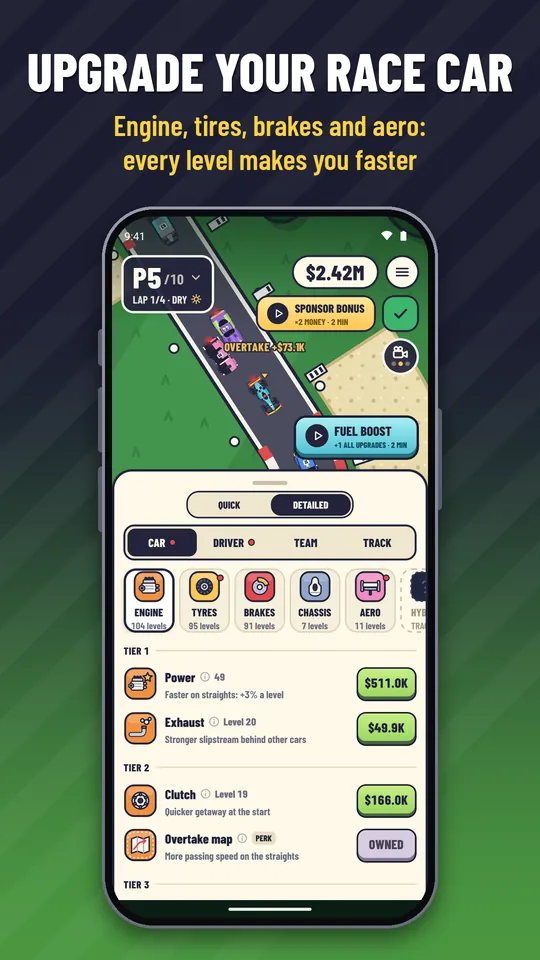
1. Start a race and read the result
Tap RACE. Your car begins each new track at the back of a ten-car field. The race runs itself; the result shows your finishing position and earnings. A lower finishing position is a starting point for developing the car, not a failed steering test.
2. Spend prize money deliberately
Open the upgrade sheet. CAR covers performance, DRIVER covers skills and equipment, TEAM improves income, and TRACK covers that circuit. You can buy during a race, and performance changes take effect from the next track segment. Starting-place changes apply to the next grid.
For an early learning path, compare the affordable main car upgrades and first driver improvements. Look at which parts of the lap are weak. The upgrade guide explains these tradeoffs; it does not promise one optimal order for every situation.
3. Repeat, review and unlock
Race again and compare results under similar weather. Outcomes include mistakes and overtaking, so one race is not a controlled test of an upgrade. Win the track to unlock the next; use the track reference to see the sequence.
4. Choose whether to automate or take a break
AUTO RACE starts the next race automatically; it does not buy upgrades. Leaving the app uses the separate away-earnings system. Optional ads can boost progression, but ordinary racing remains available without them.
If progress stalls, use the track checklist rather than resetting your save.
Related pages
Updated 2026-11-14 · Game homepage
Official sources: Wheels Idle — Google Play · At a glance